Starter kit
orbix-aspnet-starterkit/ is the same ASP.NET Core solution without the demo pages: start a new project from it
and copy pages or partials from the full template when you need them.
What it includes
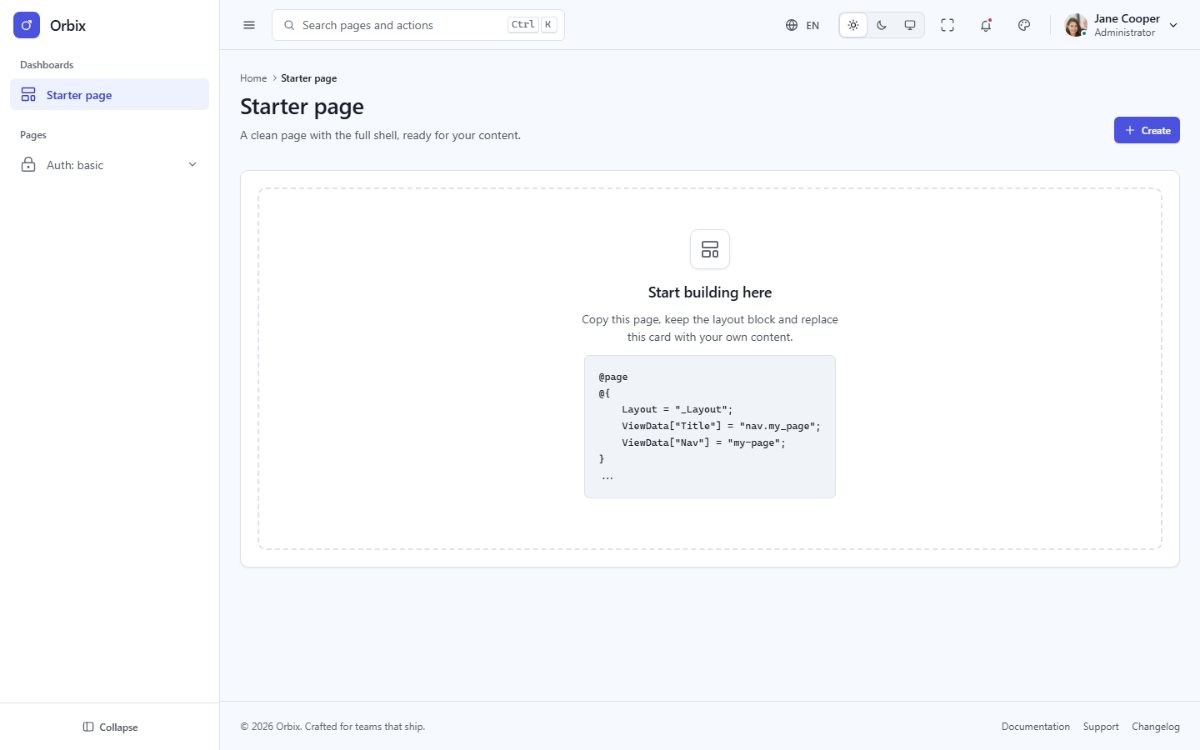
- The application shell: sidebar, topbar, footer, page header, theme customizer, command palette, notifications and language menus.
- The
_Layout,_AuthLayoutand_BlankLayoutlayouts. - The nine basic authentication pages (sign in, sign up, forgot and reset password, lock screen, two-step verification, email verification, signed out, success).
- One empty start page at
/. - The Tailwind CSS assets, the five languages with RTL, the theme runtime and the test suite.
What it leaves out: the demo pages (also the status pages), the partials and page scripts only they use, the demo
data and the chart library. Menu links to removed pages point to # until you add your own.
Install
Exactly as the full template (see Installation):
cd orbix-aspnet-starterkit
dotnet run --project src/Orbix
and, to customize the assets, npm ci && npm run build in src/Orbix.
Bring a page from the full template
- Copy the Razor page from
orbix-aspnet/src/Orbix/Pages/...to the same folder of the starter kit. - Copy the partials it uses (
<ox-partial name="apps/product-card">→Pages/Shared/Partials/apps/product-card.cshtml). - Add its URL to
Infrastructure/Navigation/PageRoutes.csand its menu entry tomenu.json. - Copy its translation keys if you removed them (the starter kit keeps the full dictionaries).
- If it has a page script (
ViewData["Module"]), copy it fromClientApp/js/pages/. For charts, also copyClientApp/js/core/charts.tsand runnpm install echarts. - Error pages: copy
Pages/status/and enable the two commented lines ofProgram.cs(UseExceptionHandlerandUseStatusCodePagesWithReExecute). - Run
npm run buildanddotnet test.
Connect authentication
The auth pages are views only, so you can plug in the authentication you prefer. With ASP.NET Core Identity:
Add the packages (
Microsoft.AspNetCore.Identity.EntityFrameworkCoreand a database provider), yourDbContextandbuilder.Services.AddIdentity...()/AddAuthentication()inProgram.cs, thenapp.UseAuthentication()andapp.UseAuthorization()afterapp.UseRouting().Give the sign-in page a page model and post the form to it:
@page
@model SignInModel
public sealed class SignInModel(SignInManager<IdentityUser> signIn) : PageModel { [BindProperty] public string Email { get; set; } = ""; [BindProperty] public string Password { get; set; } = ""; public async Task<IActionResult> OnPostAsync() { var result = await signIn.PasswordSignInAsync(Email, Password, isPersistent: false, lockoutOnFailure: true); if (result.Succeeded) return LocalRedirect("~/"); ModelState.AddModelError(string.Empty, "Invalid sign-in attempt."); return Page(); } }In the form partial (
Pages/Shared/Partials/auth/sign-in.cshtml) setmethod="post"and thenameof the inputs (Email,Password); the form tag helper adds the antiforgery token. Remove the demo attributesdata-auth-formanddata-auth-next, which simulate the flow in the browser.Protect your pages with
[Authorize]on their page models, or for whole folders withoptions.Conventions.AuthorizeFolder("/")andAllowAnonymousToFolder("/auth")inAddRazorPages().