Languages and RTL
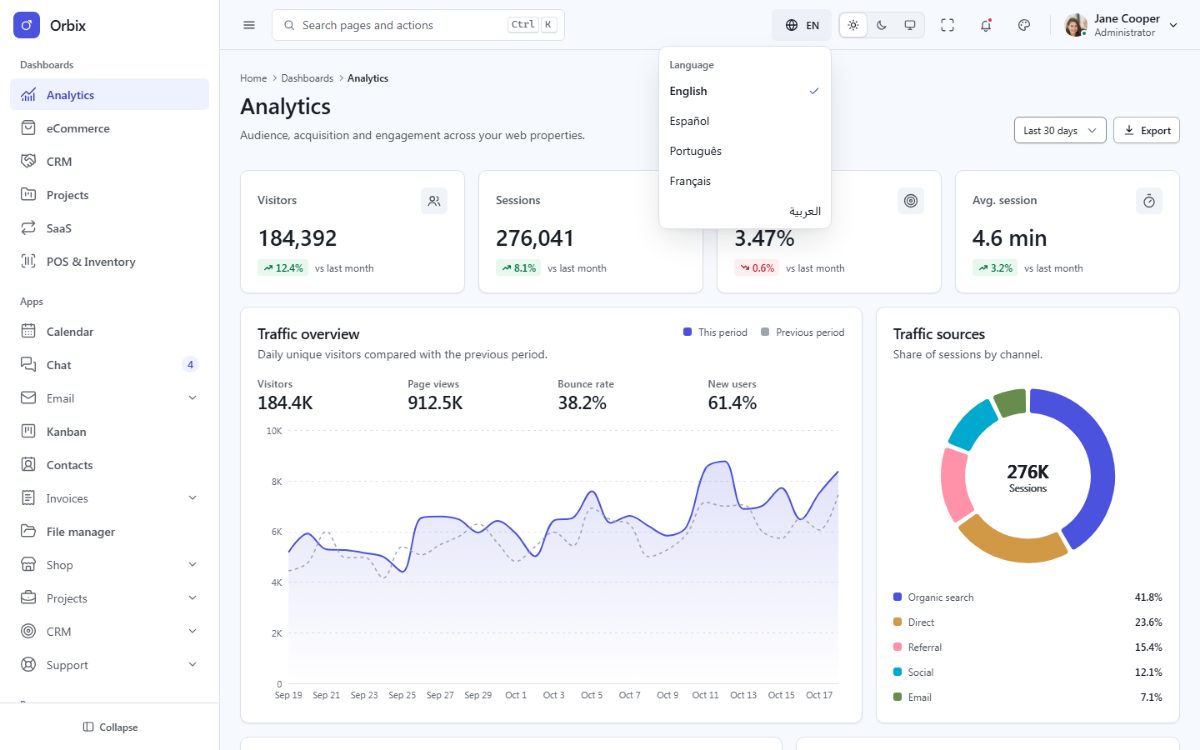
Orbix ships in English, Spanish, Portuguese, French and Arabic. Arabic switches the whole layout to
right-to-left. Numbers, currencies and dates are formatted for the active language with the browser Intl API.
How it works
- Translations live in
src/Orbix/Locales/<code>.jsonwith flat keys:"common.actions.save": "Save". They are embedded in the app and read through a standardIStringLocalizer(Infrastructure/Localization). - Razor views print them with
@L["common.actions.save"](Lis injected byPages/_ViewImports.cshtml; in C# code injectIStringLocalizer<SharedResource>). - The same files feed the in-page translator (i18next, bundled by Vite), so the language menu translates the page
instantly, without a reload. Elements carry the key in
data-i18n(text) ordata-i18n-attr(attributes):
<button type="button" class="fd-btn fd-btn--primary">
  <span class="fd-btn__label" data-i18n="common.actions.save">@L["common.actions.save"]</span>
</button>
<input class="fd-input" type="search" placeholder="@L["common.actions.search"]" data-i18n-attr="placeholder:common.actions.search">- The language of a request comes from ASP.NET Core request localization:
?lang=es(demo links), then the culture cookie, thenOrbix:DefaultLocale. The server renders<html lang dir>, the titles and the texts in that language. - The language menu saves the choice in the culture cookie (
POST /locale), so the next page is rendered in the same language.GET /locale/{code}works without JavaScript.
Razor encodes every text once, so a translation can contain &, < or quotes safely.
Placeholders and plurals
Placeholders use {{name}}: "greeting": "Welcome back, {{name}}", rendered with L.Text():
@L.Text("greeting", new { name = user.Name })Plurals use _one / _other keys (Arabic also _zero, _two, _few, _many); L.Text() picks the form of
the current language from count:
"tasks.count_one": "{{count}} task",
"tasks.count_other": "{{count}} tasks"
@L.Text("tasks.count", new { count = tasks.Count })Add a language
Copy
Locales/en.jsontoLocales/de.jsonand translate the values (keep the keys).Register it in
appsettings.json:{ "Code": "de", "Name": "Deutsch", "Dir": "ltr" }Add it to the language menus in
Pages/Shared/Components/Topbar/Default.cshtmlandPages/Shared/Partials/auth/controls.cshtml(copy one of the existing entries and changedata-fd-lang,lang, the label and theSite.Locale == "de"check).Add it to
LANGUAGESinClientApp/js/core/i18n.ts:['en', 'es', 'pt', 'fr', 'ar', 'de'].Run
npm run buildanddotnet test– the translation tests check that every language has every key (add the new code toSite.Localesintests/Orbix.Tests/Support.cs).
For a right-to-left language (Hebrew, Persian, Urdu) use "Dir": "rtl"; no other change is needed.
Remove a language
Delete its entry from appsettings.json, the two language menus and LANGUAGES, then delete
Locales/<code>.json (and its code in tests/Orbix.Tests/Support.cs).
Translating your own texts
Never write visible text directly in a view: always use a key, so every language stays complete. The test
HardcodedTextTests renders every page with a localizer that marks its texts and fails when a visible text is not
translated (demo content inside data-demo elements is allowed). Keep the keys sorted by area
(reports.sales.title) to find them easily.