Layouts and theme customizer
Page layouts
Every page starts with one of three Blade layout components:
| Component | Use | Props |
|---|---|---|
<x-layouts.app> | Application shell: sidebar, topbar, content, footer, customizer, command palette | page (navigation id), title (translation key), module (page script, optional) |
<x-layouts.auth> | Sign-in, sign-up and the other authentication screens | variant="basic", "cover" or "illustrated" |
<x-layouts.blank> | Status pages (404, 500, maintenance, coming soon) | page, title |
Shell layouts
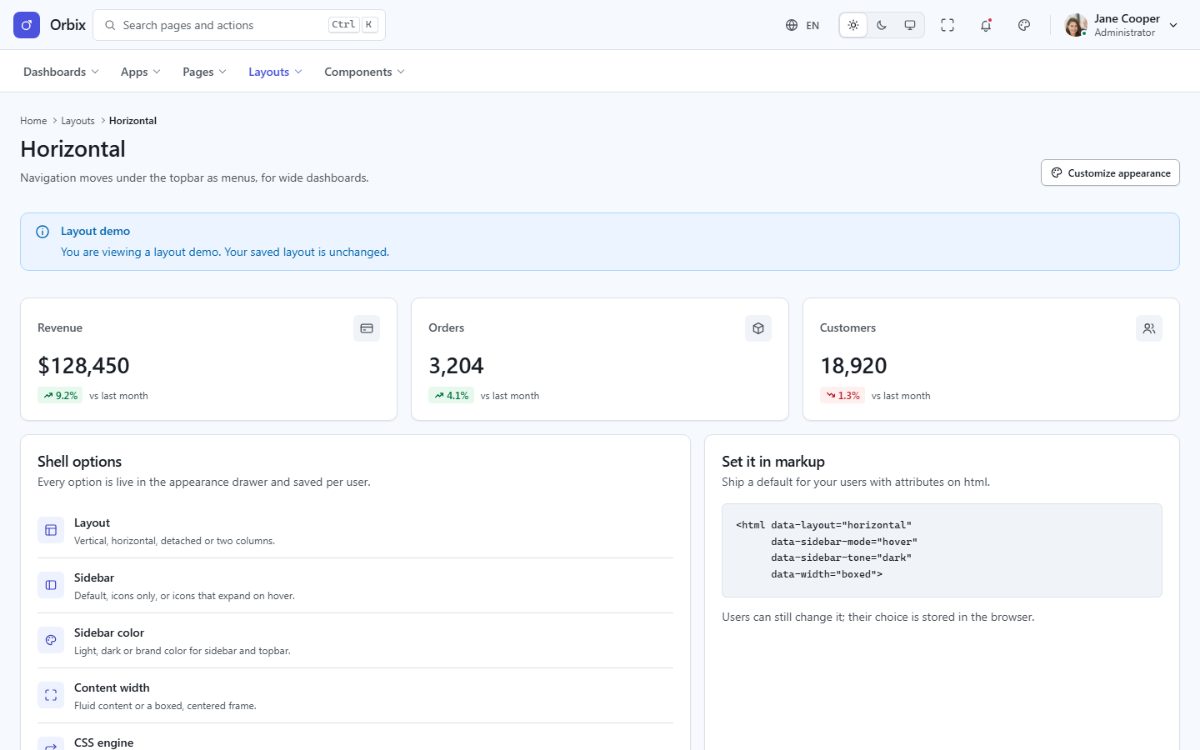
The application shell has several arrangements. They are chosen in the customizer and saved in the browser, or fixed with a demo link (handy for a live preview):
| Setting | Values | Demo link |
|---|---|---|
| Layout | vertical, horizontal, two-column, detached | ?layout=horizontal |
| Sidebar | default, icon (collapsed to icons), hover (expands on hover) | ?sidebar=icon |
| Sidebar tone | light, dark, brand | ?sidebarTone=dark |
| Topbar tone | light, dark, brand | ?topbarTone=brand |
| Content width | fluid, boxed | ?width=boxed |
| Direction | auto (from the language), ltr, rtl | ?dir=rtl |
The pages under Layouts in the menu show each arrangement without changing your saved preference.
Theme customizer
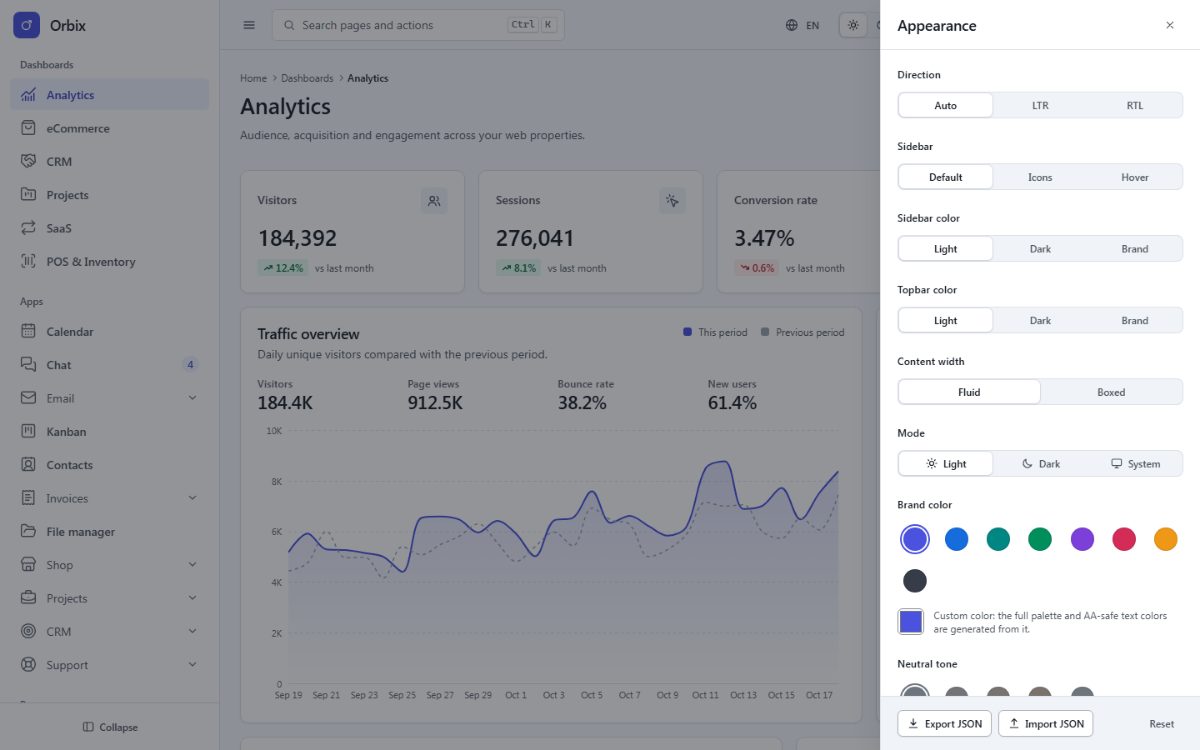
The palette icon in the topbar opens the customizer. Every change applies instantly and is saved in the
browser (localStorage), so it survives a reload:
- Mode: light, dark or system (follows the operating system).
- Brand color: 8 presets (Indigo, Blue, Teal, Emerald, Violet, Rose, Amber, Graphite) or any custom color; the whole palette, the charts and the readable text colors are derived from it.
- Neutral tone: slate, zinc, stone, cool or warm grays.
- Radius: none, small, medium, large or full.
- Density: compact, comfortable or spacious.
- Elevation: flat, soft shadows or bordered surfaces.
- Typeface: system, humanist, geometric or serif stacks.
- Motion: full or reduced animations.
- Layout, sidebar, sidebar and topbar tones, content width and direction (see the table above).
To remove the customizer from production, delete <x-shell.customizer /> from
resources/views/components/layouts/app.blade.php and the customizer button from
resources/views/components/shell/topbar.blade.php. Set your defaults as described in Theming.
Command palette
Ctrl + K (⌘ + K on macOS) opens the command palette: it searches every
menu entry of config/orbix-menu.php and offers quick actions (light mode, dark mode, switch the text direction,
open the customizer). New menu entries appear in it automatically.