Languages and RTL
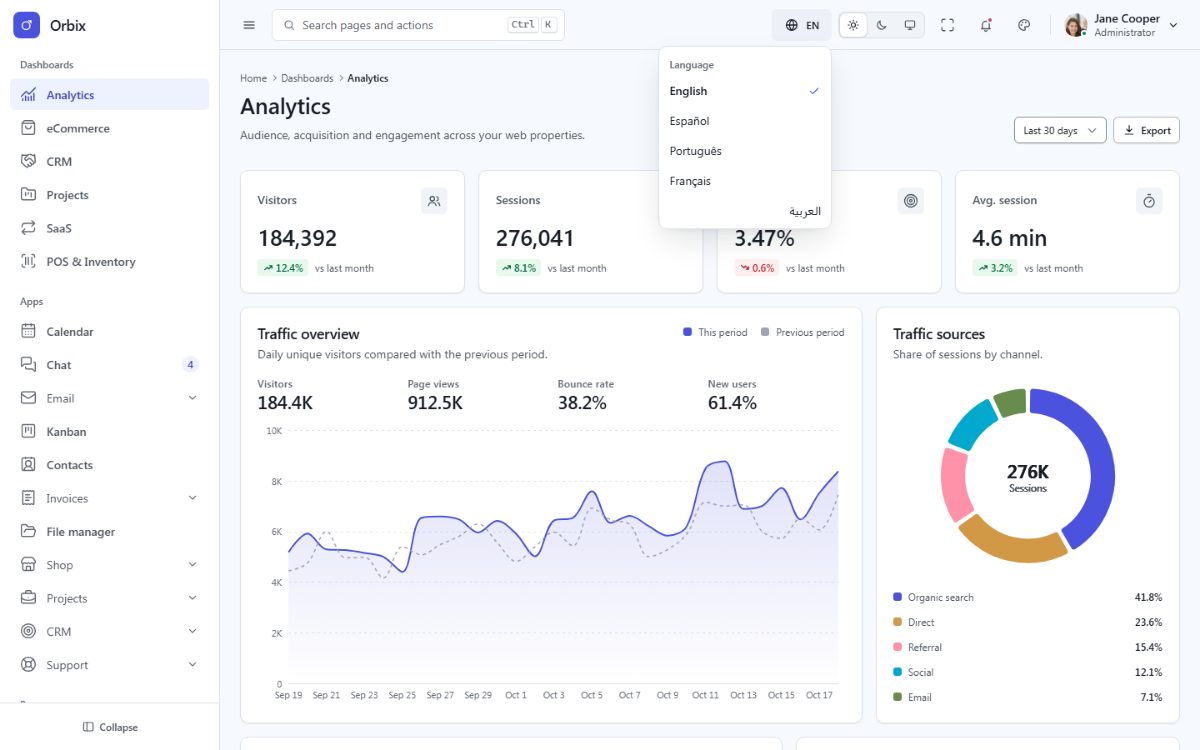
Orbix ships in English, Spanish, Portuguese, French and Arabic. Arabic switches the whole layout to
right-to-left. Numbers, currencies and dates are formatted for the active language with the browser Intl API.
How it works
- Translations live in
src/locales/<locale>/<area>.json(common.json,nav.json,dashboards.json...). A key is the file name plus the path inside it:common.actions.save. - The dictionaries are loaded with i18next (only English and the active language) and components read them
with the
useI18n()hook (built on react-i18next), so the language menu re-renders the page instantly, without a reload:
const { t, fmt, lang } = useI18n();

<button type="button" className="fd-btn fd-btn--primary">
  <span className="fd-btn__label" data-i18n="common.actions.save">{t('common.actions.save')}</span>
</button>
<input className="fd-input" type="search" placeholder={t('common.actions.search')} data-i18n-attr="placeholder:common.actions.search" />
<span>{fmt('currency', 48290.5)}</span> {/* $48,290.50 · 48.290,50 US$ · ٤٨٬٢٩٠٫٥٠ US$ */}- The
data-i18nanddata-i18n-attrattributes are optional in your own components; the template keeps them so that markup created at runtime (data grids, page scripts, foundry-ui behaviors) is translated too. - The choice is saved in the browser (
fd:lang), and demo links accept?lang=es. Without a saved choice the template starts in English.
Placeholders and plurals
Placeholders use the i18next syntax: "greeting": "Welcome back, {{name}}" and t('greeting', { name: user.name }).
Plurals use _one / _other keys (Arabic also _zero, _two, _few, _many) and a count:
{ "count_one": "{{count}} task", "count_other": "{{count}} tasks" }{t('tasks.count', { count: tasks.length })}Formats: fmt(type, value, options) with the types number, decimal, compact, currency,
currency-compact, percent, date, date-long, date-short, datetime, time, month, weekday,
relative and duration-min; options { digits, currency }.
Add a language
- Copy
src/locales/entosrc/locales/deand translate the values (keep the keys). - Add it to
LANGUAGESinsrc/core/i18n.ts:['en', 'es', 'pt', 'fr', 'ar', 'de']. - Add it to the language menus in
src/components/shell/Topbar.tsxandsrc/components/auth/AuthControls.tsx(copy one of the existing entries and changedata-fd-lang,lang, thearia-checkedtest and the label). - Add the code to the language pattern of
src/boot/orbix-boot.js(/^(en|es|pt|fr|ar|de)$/). - Run
npm test– the translation tests check that every language has every key with the same placeholders.
For a right-to-left language (Hebrew, Persian, Urdu) nothing else is needed: the direction is derived from the language code.
Remove a language
Remove it from LANGUAGES, the two language menus and the boot pattern, then delete src/locales/<locale>/.
Translating your own texts
Never write visible text directly in a component: always use a key, so every language stays complete. The test
tests/hardcoded-text.test.tsx renders every page and fails when a visible text or label is not translated (demo
content inside data-demo elements is allowed). Keep your keys in their own file per area (reports.json) to
find them easily.