Starter kit
orbix-nuxt-starterkit/ is the same Nuxt application without the demo pages: start a new project from it and
copy pages or components from the full template when you need them.
What it includes
- The application shell: sidebar, topbar, footer, page header, theme customizer, command palette, notifications and language menus.
- The
app,authandblanklayouts, the client root and the error page. - The nine basic authentication pages (sign in, sign up, forgot and reset password, lock screen, two-step verification, email verification, signed out, success).
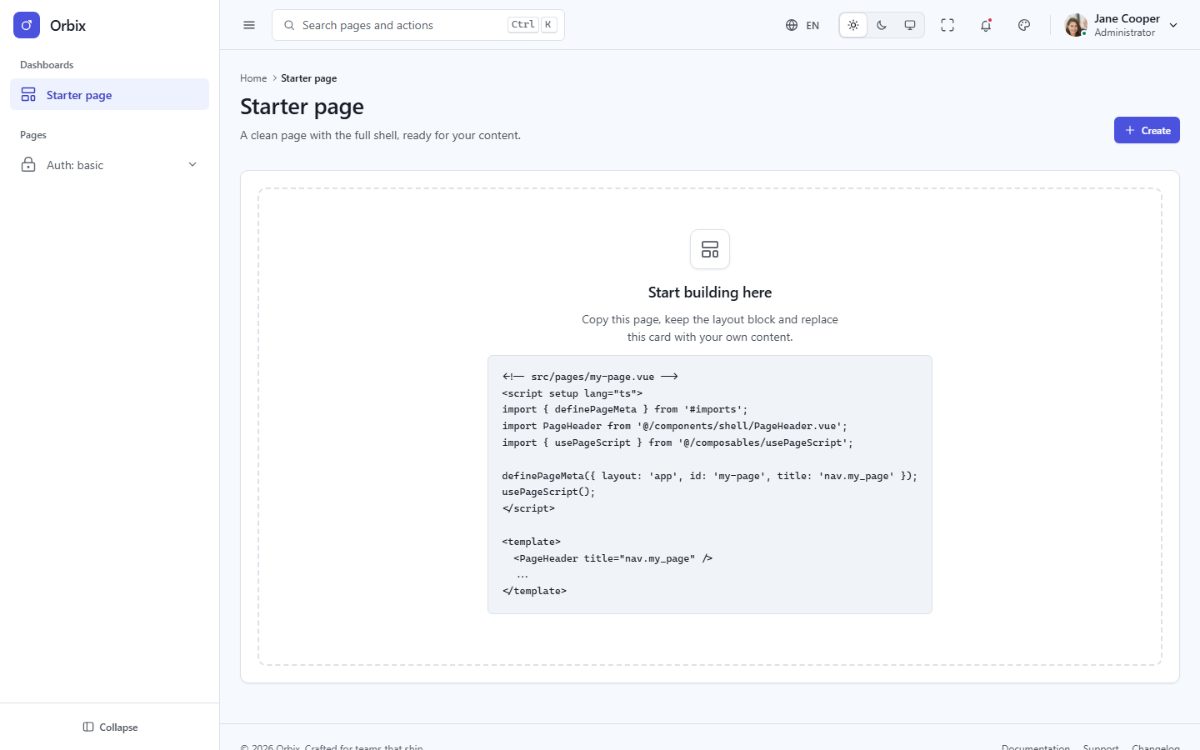
- One empty start page at
/; unknown URLs return to it. - The Tailwind CSS CSS engine, the five languages with RTL, the theme runtime, the composables, the foundry-ui Vue components, static generation and the Node.js server build, and the test suite.
What it leaves out: the demo pages, the components and page scripts only they use, the demo data and the chart
library. Menu links to removed pages point to # until you add your own.
Install
Exactly as the full template (see Installation):
cd orbix-nuxt-starterkit
npm install
npm run dev
Bring a page from the full template
- Copy the page file from
orbix-nuxt/src/pages/...to the same folder of the starter kit (the folder is the URL). - Copy the components it imports (
@/components/apps/ProductCard.vue→src/components/apps/ProductCard.vue). - Add its line to
src/config/pages.tsand its menu entry tosrc/config/menu.ts. - Every translation file of the full template is already in the starter kit (
src/locales/). - If it calls
usePageScript(init), copy the script fromsrc/scripts/(andsrc/data/for demo data). For charts, also copysrc/core/charts.tsandsrc/composables/useChart.tsand runnpm install echarts. - For a 404 page, copy
src/pages/status/404.vue,src/components/status/StatusError.vue, the/status/404line ofsrc/config/pages.tsandsrc/error.vueof the full template. - Run
npm run buildandnpm test.
Connect authentication
The auth pages are screens only, so you can plug in the authentication you prefer (your API, Auth0, Firebase,
Supabase, Clerk, or a Nuxt module such as nuxt-auth-utils with the Node.js server build). The sign-in form
validates its fields in src/scripts/auth.ts and then navigates to data-auth-next (the dashboard). To call your
API instead, handle the submit in the form component:
<!-- src/components/auth/AuthSignIn.vue -->
<script setup lang="ts">
import { useRouter } from '#imports';

const router = useRouter();

async function onSubmit(event: SubmitEvent) {
  const data = new FormData(event.currentTarget as HTMLFormElement);
  const response = await fetch('/api/login', { method: 'POST', body: data, credentials: 'include' });
  if (response.ok) await router.push('/');
}
</script>

<template>
  <form class="fd-form" novalidate @submit.prevent="onSubmit">
    <!-- the fields of the sign-in form -->
  </form>
</template>
Remove data-auth-form from that form so the demo validation does not run, keep the input name attributes your
API expects (email, password, remember), and protect your pages with a Nuxt route middleware that checks the
session, for example src/middleware/auth.global.ts:
import { defineNuxtRouteMiddleware, navigateTo } from '#imports';

export default defineNuxtRouteMiddleware((to) => {
  if (to.meta.layout === 'app' && !session.isSignedIn()) return navigateTo('/auth/basic/sign-in');
});
With the static build the check runs in the browser; with the Node.js server build it also runs on the server for the first request.